 Column Pricing In Sidebar
| Document Version | v.1 |
|---|---|
| Document Last Updated | 5/22/25 |
| Software Version Documented | v.10 |
Overview
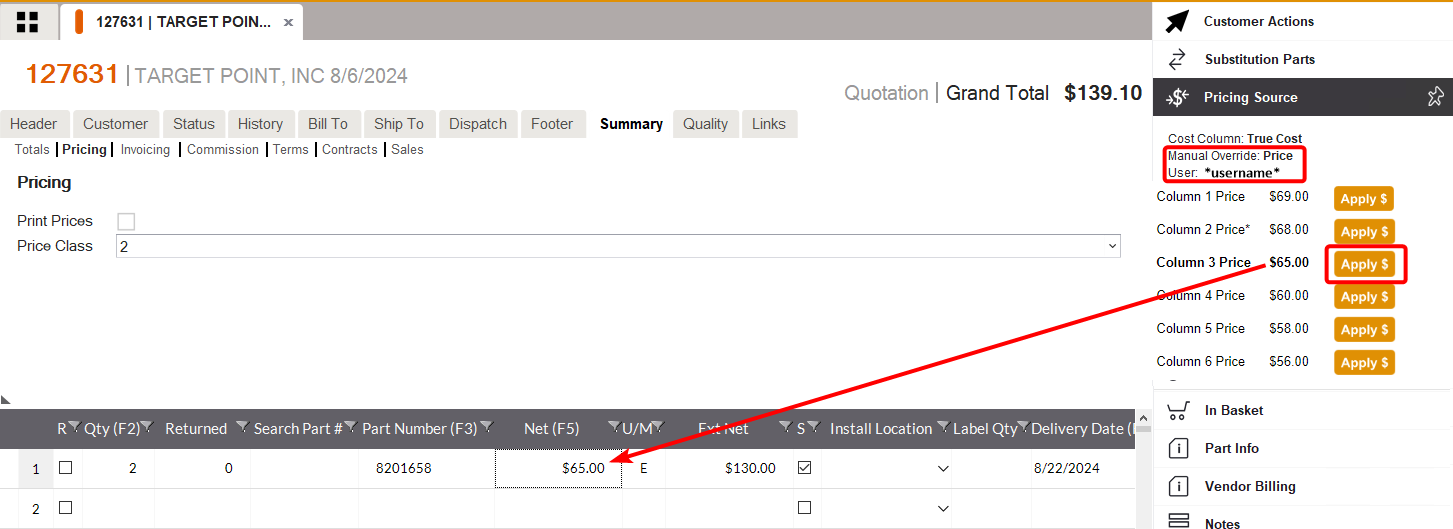
The ability has been added to view Column Price 1-6 Pricing for a selected line item in Pricing Source in the Sidebar and allows user to override Net Price of selected line item by clicking the Apply $ next to that Column Price.
-
The Column Price currently being used for a line item will be displayed in bold
-
Clicking Apply $ next to the selected Column Price will turn bold but the asterisk will remain on the original Column Price.
-
Pricing Source will refresh to show that user manually override price.
-
The price selected will refresh line item Net Price for that line item and refresh the Grand Total of Quote/Order.
-
The Apply $ buttons will be disabled until the Order is unlocked.
Pricing Source Indicators
-
If Quote/Order has a Pricing Source that is NOT a Price Class related to one of Column Prices, there will be no asterisk or bold.
- Only when user applies a Column Price to override price will that Column Price become bold. there will never be an asterisk since none of Column Prices were originally Price Source for that item.

- Only when user applies a Column Price to override price will that Column Price become bold. there will never be an asterisk since none of Column Prices were originally Price Source for that item.
-
If Order is converted Apply $ buttons will be tan and disabled.
-
Once Order is unlocked, and as long as the item has not been invoiced already, buttons will turn back to orange and enabled. Users can override prices the same way. Upon clicking save, buttons will be tan and disabled again since it is no longer unlocked.
-
The buttons will stay tan and disabled if Order is unlocked and a selected line item has been invoiced.
Security Requirements
If a user does NOT have one or more of these security objects Apply $ button will behave in different manners as will be discussed later. The prices will display but the Apply $ button will be hidden OR Quote cannot be converted or Order cannot be saved.
-
Change Net Price: Gives the user the ability to change the net price of an item that is quoted.
-
Change Order Price/Cost after Conversion: Gives the user the ability to Change Order Price/Cost after Conversion
-
Convert Quotes with Price Changes: Gives the user the ability to convert a Quote where Net Price has been changed.
-
Convert Quotes with Price Decreased: Gives the user the ability to convert a Quote where Net Price has decreased.
-
Edit Quotes: Gives the user the ability to edit a Quote that was not created by them
Column Pricing In Sidebar Functionality
Original Pricing Source has a Price Class
As a user managing Orders and working on a Quote with pricing based on a Price Class, having entered line items, all six columns of pricing are shown.
-
Select a line item
-
Open Pricing Source section in Sidebar

-
6 Pricing Columns have a value
-
As they show when open Item Manager for that Line Item

-
There is a button called Apply $ that is orange and enabled by each Column Price
-
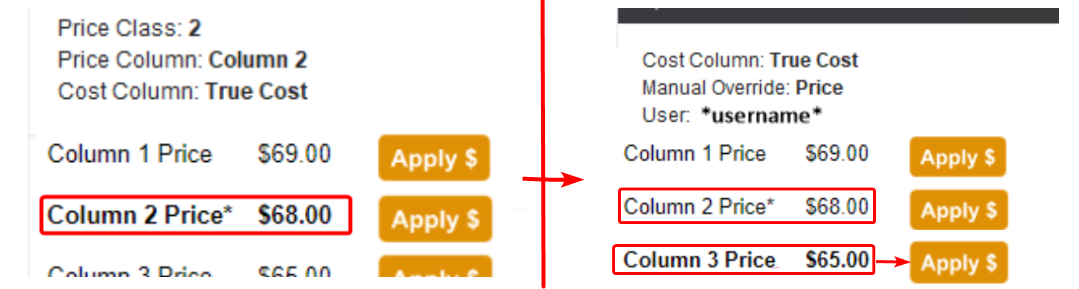
The Column Price that corresponds with Price Class on the Summary tab of the Quote is bold and has an asterisk
-
Upon clicking Apply $ Net Price for that line item is overridden with Column Price you chose
-
Newly selected Column Price is now bold
-
Original Column Price still has asterisk
-
Pricing Source shows Price was Manually Overridden
-
Shows Username
-
Grand Total refreshes to show new amount
-
Select another item
-
Column Prices refresh to show values for that item
-
Apply/override a different Column Price for that line item
-
Convert Order
-
Select a line item
-
Open Sidebar again and view Pricing Source section
-
View Column Prices
-
Apply $ buttons are all tan and disabled
-
Unlock Order
-
Select a line item
-
Apply $ buttons are now orange and enabled again
-
Override price again for a line item
-
Grand Total refreshes to show new amount
-
Click Save.
-
Process a shipper but do NOT invoice it yet
-
Unlock Order and change price using Apply $ (orange and enabled once unlocked)
-
When finally invoice, total reflects correctly
Original Pricing Source does NOT have a Price Class
-
Select a line item
-
Open Pricing Source section in Sidebar
-
6 Pricing Columns have a value
-
As they show when open Item Manager for that Line Item
-
Button called Apply $ that is orange and enabled by each price
-
NONE of Column Prices have an asterisk because none of them are originally price sourced for this account for selected item
-
Upon clicking Apply $ button, Net Price for that line item is overridden with new Column Price
-
Newly selected Column Price is now bold

-
There is still NO asterisk on any Column Price
-
Pricing Source shows Price was Manually Overridden
-
Shows Username
-
Grand Total refreshes to show new amount
Not All Pricing Columns Have a Value
-
Select a line item
-
Open Pricing Source section in Sidebar
-
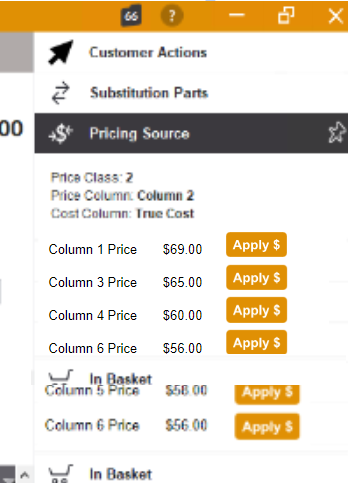
Only Column Prices that have a value show.
-
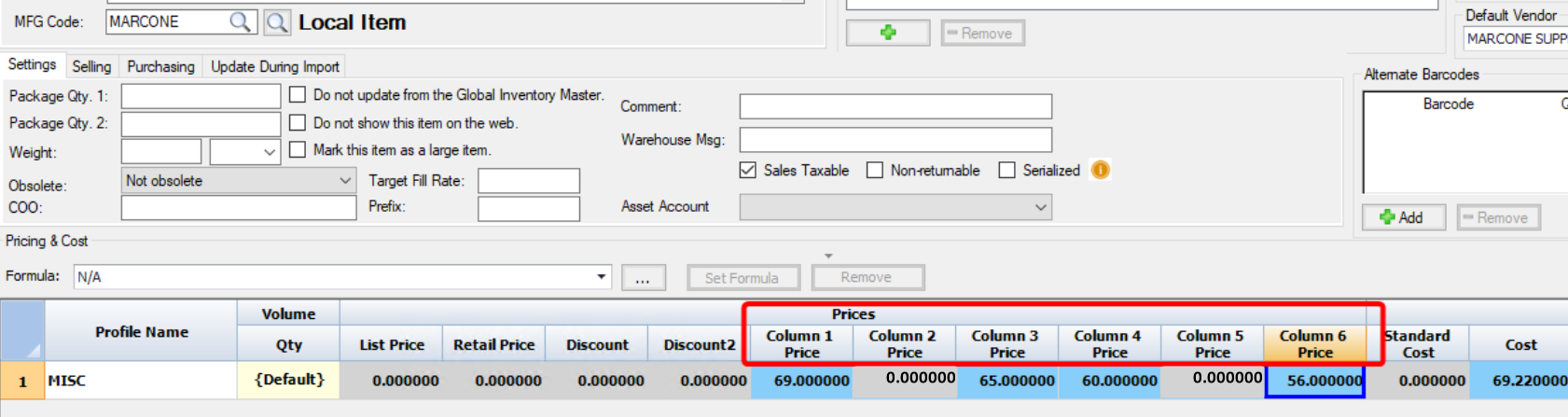
The ones with zero value are hidden (in this example, Column 2 Price and Column 5 Price are hidden)
-
As they show when open Item Manager for that Line Item
-
There is a button called Apply $ that is orange and enabled by each price
-
Apply $ button to override price like in other scenarios
Apply Column Pricing After Invoicing
-
Select line item that has been invoiced
-
Open Pricing Source section in Sidebar
-
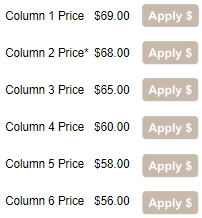
Column Prices show with values
-
All Apply $ buttons are tan and disabled
-
Unlock Order
-
Select that line item again
-
Apply $ buttons are still disabled
-
Manually type a different price either
-
Must invoice in Order to change price
Column Pricing In Sidebar WITHOUT Certain Securities
Order writers with restricted price-changing permissions need to view different Column Prices for line items in the Order, even though their security settings might prevent them from modifying prices.
Does NOT have Security Object: Change Net Price
The prices will display but Apply $ will be hidden while it’s still a Quote and when converted, even when unlocked.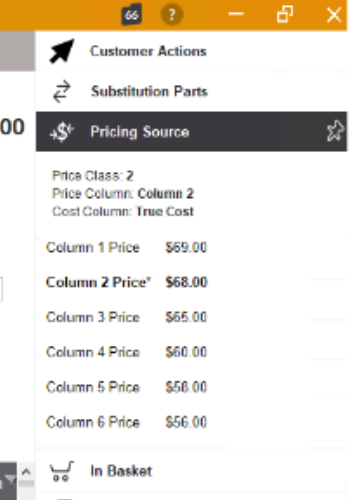
-
Select a line item
-
Open Pricing Source section of Sidebar
-
View Column Prices that have values
-
There are no Apply $ visible
-
Cannot override price to a column pricing by clicking apply
Does NOT have Security Object: Change Order Price/Cost after Conversion
The prices will display but Apply $ will be hidden while it’s still a Quote and when converted, even when unlocked.
-
On an Order
-
Select a line item
-
Open Pricing Source section of Sidebar
-
View Column Prices that have values
-
There are no Apply $ buttons visible
-
Cannot override price to a column pricing by clicking apply
-
Same applies once unlock Order
Does NOT have Security Object: Convert Quotes with Price Changes but Has Change Net Price
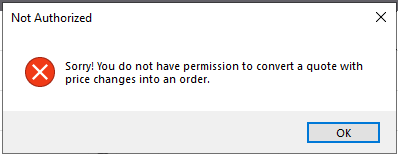
View Apply $ buttons and are engaged while a Quote, but when click Convert, this dialog box appears Sorry! You do not have permission to convert a Quote with price changes into an Order
-
Select a line item
-
Open Pricing Source section of Sidebar
-
View Column Prices that have values and orange and enabled Apply $ buttons
-
Apply a Column Price to Quote
-
Upon clicking convert
-
This dialog box appears Sorry! You do not have permissions to convert a Quote with price changes into an Order
Does NOT have Security Object: Convert Quotes with Price Changes and NO Change Net Price
Without Change Net Price, prices will display but Apply $ will be hidden.…
-
Select a line item
-
Open Pricing Source section of Sidebar
-
View Column Prices that have values
-
There are no Apply $ buttons visible
-
Cannot change Net Price
Does NOT have Security Object: Convert Quotes with Price Decreased and Change Net Price
View Apply $ and use it to decrease price, upon trying to convert
-
Select a line item
-
Open Pricing Source section of Sidebar
-
View Column Prices that have values and orange and enabled Apply $ buttons
-
Apply a Column Price to Quote
-
Given that price was a decrease from original price
-
Upon clicking convert
-
This dialog box appears Sorry! You do not have permission to convert a Quote with a price decreased into an Order

-
Cannot convert Quote with a decreased price
-
Select that same item and open Sidebar again
-
View Pricing Source again
-
But this time choose a price that is higher
-
Upon clicking convert
-
The Order will convert, that dialog box is not triggered since it’s not a decrease
Does NOT have Security Object: Convert Quotes with Price Decreased, and NO Change Net Price
Without Change Net Price, prices will display but Apply $ will be hidden.
Does NOT have Security Object: Edit Quotes
Quote that was created by another user, there are no Apply $ buttons visible